Tag: UI


Don’t Click It

November 15th, 2008 — 9:15am

The institute for interactive research developed a site to test an interface that requires no click of the mouse button. The interactions are driven by simple mouse rollOvers.

http://www.dontclick.it/

This is a very interesting interface and experiment, as it removes an aspect of interaction that most every computer user has made second nature. Although the mouse click is an extra interaction for a user to accomplish a task, I’m not sure how I feel about removing that action from the UI. I almost feel handicapped, although it actually does drive information and UI deeper levels to the user with faster time and less effort on the user’s part.

A couple concerns I have about this though:
Removing a common interaction seems to force me to think my actions more than if I could simply have to click. As for the psychometrics, I’m not sure if that would measure more effort in the brain, compared to the less physical effort of the click. This is also based on habit though. With anything new, the learning curve and acclimation period is high. After immersing myself in this UI, I may become more accustomed to it. The issue here is actually being able to immerse oneself in a non clickable UI, without the interference or influence of traditional UI’s which already exist all around.

Real estate becomes a huge factor with this type of interface. You must rely on visuals for all interactions, and this calls for displaying all interactions in a visual way which will inevitably take up screen real estate. I must admit, the design on this site is well done and looks clean. Their management of the visuals was handled nicely and the interactions, transitions are very clean. The only thing is that it was hard to define consistency or patterns, which assist users with using their intuition. When the content is presented differently for each type, it becomes difficult to determine relative and unique items from one another.

Multi-tasking becomes highly difficult. The content is so heavily dependent on the mouse position, that if you move to another location, you will lose the content you have navigated to. even attempting to take a selective screenshot became difficult and impossible, I had to opt for a full screenshot and crop it for the image in this post.

The experiment overall is an awesome idea. It can help solve UI problems on both sides, when you should implement a click, and when you shouldn’t. As an experiment, I am taking into account practicality concerns, just as with any experiment, it is usually a concept still attempting to prove the concept or what direction it may go. Almost like the idea of a flying car… engineers are currently working on this, and many would argue about the safety concerns with the concept. People can not even drive grounded cars 100% properly and safely, how are we going to allow them to fly? even with practical challenges and barriers, it should not hold up the innovation, research and testing of an idea.

I am glad to see people are out there doing research like this. Although some may have only negative things to say about exploration like this, at least the people behind it are actually doing something and publicizing it.

Oblong

November 14th, 2008 — 1:51pm

This is a very unique UX and UI which incorporates the use of gloves and body movement.

I’ll write my feelings about it later.

http://oblong.com/


g-speak overview 1828121108 from john underkoffler on Vimeo.

Category: Design

tags: ,

Comment »

Interactive Mirror

November 12th, 2008 — 1:17pm

Look at this!

Category: Tech

tags: ,

Comment »

Skin to Win Challenge WINNERS!

October 17th, 2008 — 9:01am

The winners have been decided! This was an awesome contest and the turnout was great. As mentioned in the previous post, the entries were definitely outstanding and creative.

First Place:
Undefined by Alberto Alcaraz

Second Place:
Brownie by Nahuel Foronda
Brownie Flex theme

Third Place:
iCandy by Phil Chung
iCandy Flex Theme

Congratulations to the winners and all of those who entered. It was definitely hard to choose the winners, and there were some honorable mentions too.

Visit scalenine.com/blog for the details

Skin to Win Challenge entries

October 15th, 2008 — 6:01pm

The Adobe, Scalenine, and EffectiveUI Skin to Win Challenge had a great turn out. I reviewed the entries the past few days and was quite impressed! There are some very talented designers and developers who entered and brought their own flavors to the mix.

There was everything from simple and basic, to wild and very creative. A great array of the possibilities that Flex allows for skinning/styling for sure.

I still have no idea who has won, as I am only a single judge, and the winners will be chosen by an accumulative scoring system with the other judges scores.

The winner will be announced soon!

Illustration in Microsoft Expression Design

September 8th, 2008 — 4:05pm

I started messing around in Microsoft Expression Design 2.

After dabbling around in it, I wanted to see if I could do some illustrating in it. I decided to work on a Mighty Mouse image. It is pretty simple and not the most complex subject for a digital illustration, but it is a good first experimental piece.

I will tackle some more complex subjects and designs in the near future, especially with a project I am currently working on for Microsoft.

The tools are fairly easy to get used to based on working in Adobe’s tools. Some of the effects and filters like Gaussian blur and glows behave a little unexpectedly, yet they offer most of the properties that other tools provide. I barely used any in this illustration, since I couldn’t obtain the effect I wanted. I ended up just using shapes, gradients with alphas on the stops and some layering.

Scalenine Skin to Win Challenge!

August 12th, 2008 — 12:18am

Juan Sanchez from Scalenine.com, just announced the Scalenine Skin to Win Challenge, sponsored by: EffectiveUI and Adobe. This is such a good idea and I think it is great that Scalenine, Adobe and EffectiveUI are supporting this event. A great chance to see how design and development can come together with Flex and the Adobe design tools.

I created the logo below for the contest. I would like to thank Juan Sanchez for the design request, it’s definitely fun to get into design mode for a concept like this. A nice deviation from UI design.

Typically I would normally do this type of graphic in Adobe Illustrator, but I wanted to see how far I could go with it in Fireworks. I’ve been using Fireworks for UI design religiously lately, as I feel that it is very optimized for that type of design work. I have done several detailed icon illustrations in FW with no major issues or lack of tools, although a gradient mesh tool would be very welcomed. FW has become one of my favorite design tools out of the suite, rising up from the least favored a couple years ago. As for the motivation behind the design, I wanted to capture some aspects and elements of skinning a Flex app(ScrollBar, ComboBox, CheckBox), plus I wanted to make it energetic with some added depth to a very two dimensional realm. I mocked all of the 3D elements in FW manually, since I suck at Maya, ;) . I even thought about using Ai for its simulated 3D tools, but they didn’t provide me the shaping and sculpting control that this design required. I could have accomplished this in Ai with minimal compromises if any at all, so don’t take this as a dis to Ai.

Hope you enjoy it and get in on the contest! I’m a judge, so I can’t enter :’( !

To compete in the contest, all you have to do is create the BEST Flex theme ever! This is an awesome contest to either hone your skinning skills for Flex, or for even getting introduced to skinning for Flex. You don’t have to be a pro to contend, with some research and effort, a novice could utilize the tools and tutorials available online (see scalenine for details), and still produce an awesome theme. It is a really excellent learning experience to create a whole theme, and even if you can’t get in on this event due to time or experience, it is still worth the effort. It won’t only up your skills for Flex design/development, it can also provide you with some knowledge and skills for skinning on a variety of platforms.

There are some awesome prizes out there too, like a MacBook Air, Adobe MAX tickets, and Adobe software. There will be some special recognitions and some possible copies of Flex Builder thrown out there as well. This is sure to be an amazing challenge and I can’t wait to see the entries!

For more details, vist: scalenine.com

Flex Skinning & Degrafa

July 22nd, 2008 — 3:56pm

I have been working with Degrafa in my spare time… all of that spare time that I have.

I am quite impressed. Not only by the framework and how scalable, flexible, and powerful it is, but also by its ease of use for even a designer such as myself. It does have some complicated aspects, but for the most part, it is fairy easy to grasp once you get your feet wet.

My first implementation was some additive work to Juan Sanchez’s scrollBar track to Discovery Live Earth that he helped me out with. That wasn’t much, as I just looked at what Juan had written and made some slight adjustments and color changes.

Now, I’m attempting to create a whole Flex theme using Degrafa. It has been challenging, but it is a great way to gain insight about Degrafa and skinning for Flex.

I highly recommend creating a complete theme for Flex to learn some of the basics and advance aspects of skinning. If you have the ability to, then you should also build a test application in Flex to test the skins and most importantly, to review the states of the components. I will post the code for a test application soon, as I made one for my own use.

You do not have to use Degrafa, you can use one of the many forms of skinning, from vector swfs in Flash or Illustrator, to bitmaps in Photoshop or Fireworks, and if you want, you can make a simple CSS based one rather quickly using one of the Flex Style Explorer.
Click Here is the Flex 3 Style Explorer
(please note that Adobe still hasn’t updated the title in the html page from Flex 2)
An easy way to get into skinning for Flex, is to download the Flex Skinning Extensions. You will need an Adobe account, which is FREE.
Click Here to get Extensions!

Keep in mind, that there are a couple techniques which are slightly more optimal and what I favor. I prefer to use stateful skins using Flash. By using stateful skins, you can create all of the states of your skin within one symbol (MovieClip), so it is self contained and easier to manage. You can even add animations and transitions to give it a little more flavor.

Not only are stateful skins great to work with for those reasons, but since it is in Flash, you can make them vector. Very optimal for performance, and scaling with scale9 enabled on your symbols. One other minor detail to keep in mind, which could pose problems, nested MovieClips will NOT scale 9 properly. This means you will not be able to use filters such as drop shadows, glows within a MovieClip that may require scale 9 like rounded rectangles.
(you must create a MovieClip in order to apply a filter in Flash)

To accomplish those effects on a scale 9 symbol, you can mock the shadows and filters with vector art, or you can apply the filter/effect in Flex. Based on some rumors, CS4 should fix this issue, as it is a problem within Flash and not Flex. Also, you can apply the scale 9 grid within the CSS for some skins like Bitmaps.
Here is a post for Flex 2 and scale 9 grid in CSS
Adobe DevNet

Discovery Earth Live – 3D RIA

June 24th, 2008 — 1:28am

I’m a little late on blogging about the release of Discovery Earth Live. It is an online application built in Flex which allows user to cross reference earth related data and information upon an interactive 3D representation of the Earth.

Click here to visit Discovery Earth Live

I was the lead production designer on the project and at first, was heading up extending the design comps for skinning. After some major design changes, I had to begin redesigning the whole layout. The change came late into the project and it was to reduce the width by 120px. Which may not sound like a lot to everyone, but in the web/software industry, that is huge!

This change did not simply call for “squishing” the app and squeezing the design into a smaller width. Some instances this would work, but not in this case. We had a very unique experience designed, especially with the use of a 3D globe, which could not be simply squished. This would’ve have really made the experience and design crumble.

Instead of doing that, we opted for an overhaul and redesign. I was actually at Adobe MAX in Chicago during the time. IMyself and a couple of the development team members were out there, and we started working on it from the convention center and hotel.

I maintained the theme for the most part, that our Concept designers had already put together and Discovery already approved. Since we did have to reduce quite a bit, I felt that using curved modules on the right and left would not only look unique, but it would serve some functionality with the 3D earth by allowing it to breathe a little more. This gave the application a little more dimension and variation from typical straight edged components and modules (which does not work for every app).

We also had to rework how the navigation would behave and be laid out. Initially, we had a left column browser using a custom tree-like accordion. This worked well before, but not in the new design. We chose to place it at the bottom in a 3 column waterfall navigation. We felt this would allow the user to have a good view of the items and children. This also gave them access to the controls for each layer item.

Some other minor features were the latitude and longitude coordinates. Brad Umbaugh was the primary dev on the earth, and he not only put the earth together with Away 3D, but was able to get those calculations for the lat/long coordinates.

The application still looked pretty tight still. So although the user does require the details and info, the main focus of the application is the Earth. I wanted to give them just that, so we came up with the “space” view, where you can push away all of the other panels, modules and navigation, and just focus on the Earth. It is a mocked up space environment in the background, but it does allow the user to get the feeling that they are viewing the earth in space.

There is also a small Widget you can create and embed into your own personal web page, blog, social network site, etc.

RJ Owen was another developer on the team. He was very helpful in putting all of this together and working closely with design to ensure everything was developed as it was intended. Kevin Skrenes was another big contributor, with development of some of the custom components and working with skinning.

This was a great project and case study for me. One major thing that came out of this was how extensible and agile Flex is for development and design. The application was 3/4 developed based on the original design, and we were able to redesign the interface, experience and add some functionality within 2 weeks! The client was happy and the people seem to enjoy it.

It has won a couple awards since the release.

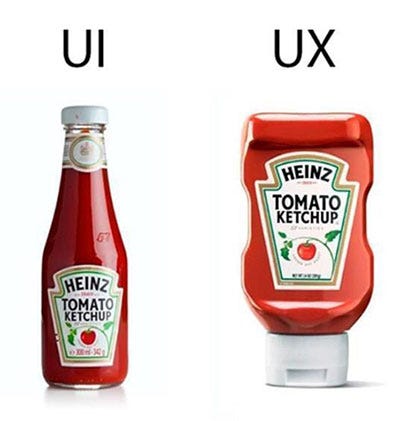
UI UX XD WTF

June 19th, 2008 — 11:20am

There are a lot of acronyms and abbreviations out in the technology industry.

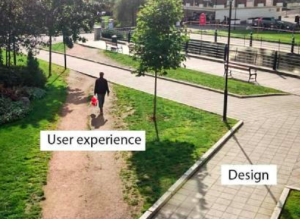
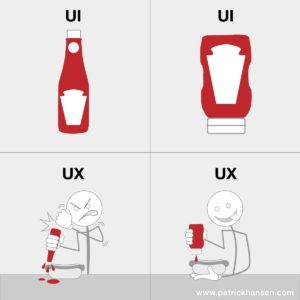
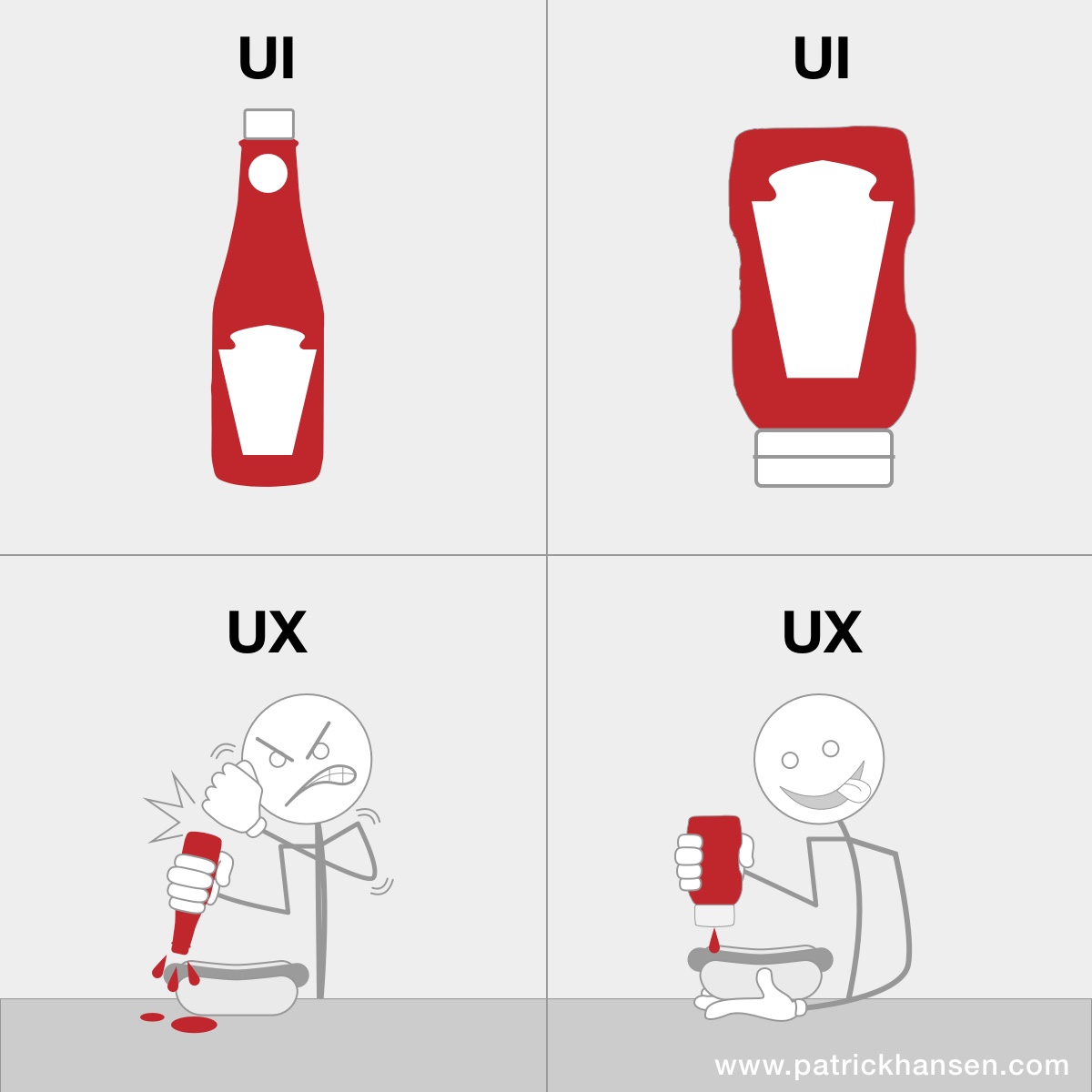
Someone recently asked me what are the primary differences between UX, UI, and XD? Well UX and XD are very similar I would say. But wait, what the heck do those mean anyways?

UX is also known as User Experience and XD is known as Experience Design. They usually fall hand in hand, it is more based on one’s desired explanation or title choice. Right now, I’m currently going by User Experience Designer, so you could call me a UXD, but please don’t… Just call me Patrick Hansen.

UI is simply User Interface. This is related to design as well and you could be referring to a UI designer, or the actual UI of an application. You could even be referring to the UI of your car’s dashboard.

So, how do we distinguish between all of this and make any sense of it?

Well, UI is pretty straight forward. It is the actual user interface. Here is WIKI’s definition: “The user interface (or Human Machine Interface) is the aggregate of means by which people—the users—interact with the system—a particular machine, device, computer program or other complex tools.”

here is WIKI”s explanation of user experience: “User experience design is a subset of the field of experience design which pertains to the creation of the architecture and interaction models which impact a user’s perception of a device or system. The scope of the field is directed at affecting “all aspects of the user’s interaction with the product: how it is perceived, learned, and used.”

The latter is a little more abstract and not an exact science. Designing a great user experience requires a very thoughtful approach in not only design, aesthetics and functionality, but also you have to take into account the human emotions. As every human is individual, you can see why this can complicate things. Everyone will not react or behave in the same way, so to gauge experience is slightly difficult. You can however, gather feedback and create from there. Pulling feedback on existing systems for a new iteration is even better. That way you have a foundation to go from, and you can not only aim for what will make a great experience, but you can note what has NOT made a great user experience so far.

One example I provided my friend was a simple Google image search and Pic Lens plugin for Firefox.
Both are user interfaces, that’s obvious. Now the experience of using either one is significantly different. Now, I’m not saying either one is better than the other, as they both have pros and cons in dependent scenarios.

Just a quick demo. Install Pic Lens if you haven’t yet. Don’t worry, it won’t hurt you or your browser, just provide a new feature. You can uninstall it whenever you choose.

Now first, run an image search in Google. You get a list of image results that you can paginate through. It got the job done, the images are displayed clearly including info and meta data about the image. They even link to their sources. Fantastic! Does the job, simple and easy. Great UI.

Now, I’m going to open the search in Pic Lens by clicking on the little grey arrow that appears over images now.

This will open the search up in pic lens full screen. It is 3D environment, where you can keep moving towards the right to pull in more images. No pagination, but use of scrolling. It immerses you into a full image library wall in a simulated 3D space.

Now again, I’m not saying this is better for all cases, but the experience is quite different from the conventional image search and listed results. The user will decide how great of an experience it is, although I would say in most cases, the Pic Lens route provides a more exciting and unique way to search through images.

You can even relate this to automobiles. You can get to point A to point B in virtually any car, let’s say an economy car like a Chevy Cobalt.

If you had the choice to go to point A to point B in a Bentley, would you do it?

You may not see a need for it, for some practical reasons, gas, or personal feelings on luxury. But, I do not think you can argue that the experience would be dramatically different and possibly even better than the economy car. Again, both are experiences and both have similar UI’s such as a dashboard, steering wheel, etc., and both have user experiences.

Which one has a better focus on the user and reaching into their emotions to provide a great user experience? I’ll leave that up to you, but I can say that both do provide and complete the functionality request, in this case transport the user. All I have to say is I’d much rather sit on leather, have a smooth ride, and enjoy a great sound system, rather than just sitting on cloth, and have a bumpy ride with road noise and interference blending with my music.

Remind you of any contrasting OS’s? ;)

Back to top